
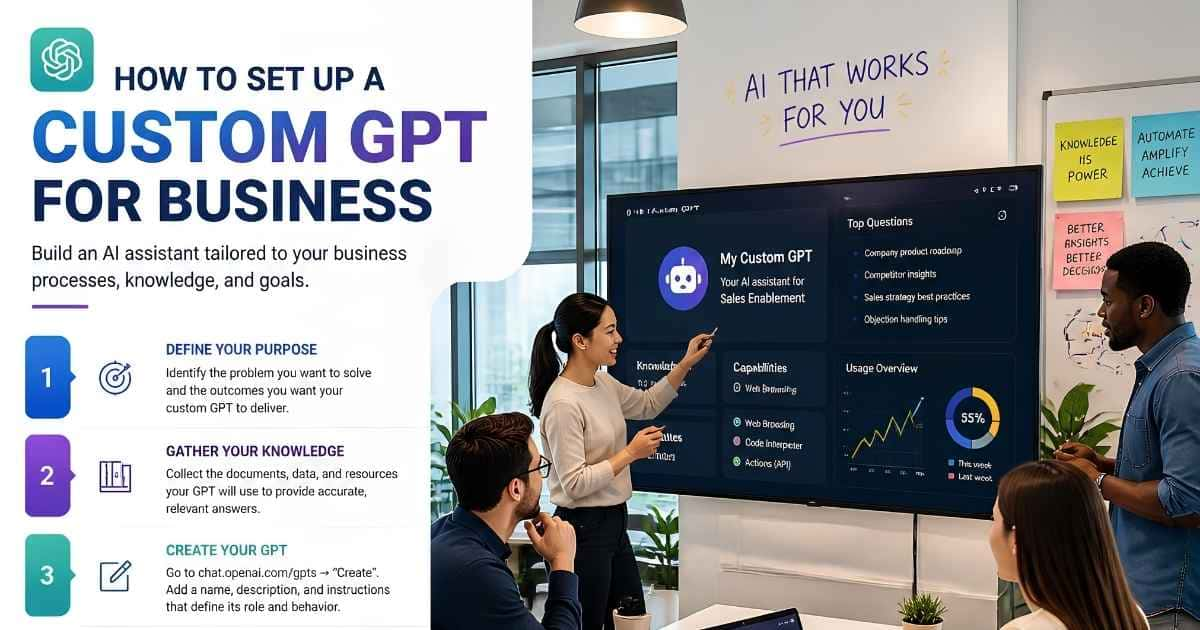
Setting up a custom GPT for business used to be simple: pay for Plus, open the builder, and start configuring. In late 2026, the rules changed — OpenAI now restricts new GPT creation to Business, Enterprise, and Edu workspaces, and has announced plans to retire custom GPTs in favor of Plugins.
This guide covers the 7-step build process for teams that can still create GPTs, the current plan requirements and pricing, data security, and what the announced retirement means for your custom GPT for business.
What Is a Custom GPT (And Why Your Business Needs One)
A custom GPT is a version of ChatGPT configured with specific instructions, reference files, and capabilities so it behaves consistently without re-explaining context — more like a team member who already knows your brand voice, your procedures, and where to draw the line.
According to OpenAI’s own documentation, the editor lets you build conversationally or configure fields directly, with no coding required.
You don’t need a developer to connect a knowledge base or write custom logic — you need clarity about the task you’re offloading.
Custom GPT Pricing & Plan Requirements
Most older guides get this wrong. As of late 2026, creating or publishing a new GPT requires a Business, Enterprise, or Edu workspace — personal accounts (Free, Go, Plus, Pro) can use and edit existing GPTs but can’t create new ones. The plan formerly called Team is now ChatGPT Business.
| Plan | Price | GPT access | Best for |
|---|---|---|---|
| ChatGPT Plus | $20/month | Use and edit existing GPTs; cannot create new ones | Solo founders, freelancers |
| ChatGPT Business | $20/seat/month billed annually ($25 billed monthly), 2-seat minimum | Create, edit, and publish GPTs (workspace permissions allowing) | Small businesses, agencies, teams up to 200 |
| ChatGPT Enterprise | Custom pricing | Create, edit, and publish GPTs (workspace permissions allowing) | Larger organizations needing admin controls and data residency |
| ChatGPT Edu | Institutional pricing | Create, edit, and publish GPTs (workspace permissions allowing) | Universities and schools |
A two-person team starts at roughly $40–$50/month, and Business workspaces exclude your data from model training by default.
Step-by-Step: How to Set Up Custom GPT for Business
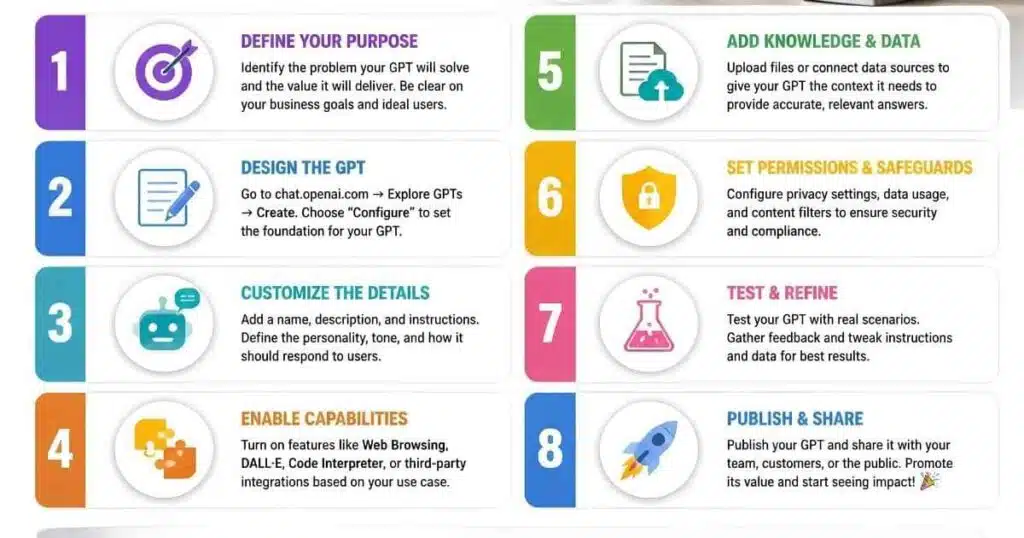
Step 1 — Define the Role Before Opening the Builder
Write down what this GPT is responsible for — and what it isn’t. Vague scope produces vague output.
Step 2 — Write Your System Prompt & Instructions
Structure your custom GPT for business instructions like onboarding docs: responsibilities, boundaries, and what “good” looks like. Use “when X happens, do Y” step structure, and favor positive instructions over long lists of prohibitions.
Step 3 — Upload & Organize Your Knowledge Base
OpenAI’s builder docs list up to 20 files at 512 MB each, though a related uploads FAQ says 10 — plan for 10 to be safe.
Quality beats volume: outdated or contradictory files confuse the model, and plain text, Markdown, and clean PDFs retrieve far better than scanned documents or image-heavy slide decks.
Step 4 — Set Capabilities (Web Browsing, Code Interpreter, Actions)
Capabilities extend what your custom GPT for business can do — web search, code interpreter, or actions for external APIs. Enable only what the role needs; extra tools increase inconsistent behavior.
Step 5 — Add Conversation Starters
These example prompts shape how users engage from the first message. A customer-facing custom GPT for business benefits from guided starters that steer non-experts toward useful questions.
Step 6 — Test With Real Business Scenarios
Don’t test with “is this smart” questions. Run the actual tasks your team handles weekly, and tighten the instructions before adding features.
Step 7 — Publish, Share & Set Version History
Publish your custom GPT for business and choose visibility: only you, anyone with a link, or public via the GPT Store. Version history lets you review or restore earlier configurations.
Business Use Cases for Custom GPTs (With Example Prompts)
Department-by-Department Use Case Table
| Department | Task | Example Prompt Focus |
|---|---|---|
| Sales | Lead qualification | “Score this lead based on our ICP criteria” |
| HR | Onboarding support | “Answer new hire questions using our handbook” |
| Customer Service | FAQ handling | “Respond using our approved tone and policies” |
| Marketing | Content repurposing | “Turn this transcript into a blog and email” |
Real-Life Example: Turning Video Content Into a Full Content Pipeline
Marketing consultant Jillian Wise built a custom GPT to repurpose her YouTube transcripts into SEO-optimized blog posts, email teasers, and social captions — all in her own voice, since the GPT works from her existing content. According to her detailed case walkthrough, a process that used to take roughly four hours now collapses into a fraction of that time.
The pattern worth copying: she didn’t ask the GPT to think creatively for her. She asked it to support a workflow she’d already defined — exactly the distinction between a GPT that helps and one that adds noise.
Connecting Custom GPTs to Your Business Tools (Actions & API Integration)
A custom GPT for business connects to outside software two ways. Apps are ready-made, no-code integrations from ChatGPT’s app directory — pick the tool and sign in. Actions are custom integrations you build by describing your company’s API in an OpenAPI schema, letting the GPT pull data or trigger CRM and calendar workflows.
Integrating CRM, Slack, and Calendar Tools
Start with Apps if your tool is already listed — Actions only earn their setup cost when no ready-made integration exists.
Data Security & Privacy for Business Custom GPTs
Security deserves real attention if your custom GPT for business handles customer information.
What Not to Upload (Confidential & Customer Data)
Avoid uploading customer social security numbers, payment details, or anything proprietary you wouldn’t want exposed. Treat your knowledge base like a shared company drive, not a dumping ground.
Managing Access: Private, Link-Only, or Public
Choose visibility deliberately. Private keeps a GPT for your own use, link-only suits internal teams or vetted clients, and public makes it discoverable in the GPT Store. Anything client-facing needs tighter constraints, since you can’t predict every way a stranger might phrase a request.
What OpenAI’s Planned GPT Retirement Means
OpenAI has announced plans to retire custom GPTs and move users toward Plugins — reusable instructions combined with connected apps — with retirement planned for December 2026 for affected workspaces. Existing GPTs remain usable until then.
Practically, this means: don’t build a business model around selling GPTs through the GPT Store, and if you’re starting fresh in an eligible workspace, keep your custom GPT for business workflows portable — clear instructions, well-organized knowledge files, minimal dependence on GPT-specific features.
Common Custom GPT Problems & How to Fix Them
Even a carefully built GPT can drift. Here are the most common issues, with quick fixes.
- “My GPT isn’t using my knowledge files” — usually means files are too long, contradictory, or the instructions never say when to reference them. Break large documents into smaller, purpose-driven files.
- “The outputs are inconsistent or off-brand” — almost always a clarity problem. Add examples of ideal output and tighten tone instructions.
- “My GPT keeps doing things I didn’t ask it to” — a boundary issue. Add explicit exclusions describing what the GPT should never do.
Conclusion — Getting Started With Your First Business Custom GPT
Setting up a custom GPT for business comes down to clarity, not complexity. You don’t need to code or a massive budget — just one clearly defined task, a well-written system prompt, and a small, organized knowledge base it can rely on.
The businesses seeing real results from a custom GPT for business, like Jillian Wise’s content repurposing workflow, all started small and tested against real scenarios first. Pick one repetitive task eating up your team’s time this week and build your first GPT around it.
Frequently Asked Questions
Do I need ChatGPT Plus to create a custom GPT for business?
No — not anymore. As of late 2026, OpenAI restricts new GPT creation and publishing to Business, Enterprise, and Edu workspaces. ChatGPT Plus lets you use and edit existing GPTs, but not create new ones. Teams usually start with ChatGPT Business, roughly $20 per seat per month on annual billing.
How much does a custom GPT for business cost?
The GPT builder has no separate fee — the cost is your ChatGPT plan. Plus costs $20/month (use only), Business starts around $20 per user per month on annual billing with a two-seat minimum, and Enterprise is custom-quoted. Actions integrations for your custom GPT for business may add API costs on top.
Is a custom GPT secure enough for business data?
It can be, with the right habits: Business and Enterprise workspaces exclude your data from model training by default. Beyond that, avoid uploading sensitive customer data into knowledge files, and restrict visibility to private or link-only for anything client-facing.
Can I connect a custom GPT to my company’s software?
Use Apps for ready-made, no-code integrations from ChatGPT’s app directory, or Actions to wire up your own API via an OpenAPI schema — for example, pulling lead data from your CRM or checking calendar availability before suggesting meeting times.
Are custom GPTs being retired by OpenAI?
OpenAI has announced plans to retire custom GPTs in favor of Plugins, with retirement planned for December 2026 for affected workspaces and a migration flow in development. Existing GPTs remain usable until then. Build new workflows with clear, portable instructions so they’re easy to migrate.

Abdul Manan is a professional SEO content creator and AI-SEO strategist at seofyai.com. He specializes in helping businesses rank higher on Google through AI-powered, data-driven content optimization. Connect on LinkedIn or visit seofyai.com for expert SEO tips.