

Most guides on how to set up AI SEO plugin WordPress fall into one of two traps. Either they read like a marketing page dressed up as advice, or they walk through a generic install without mentioning robots.txt, llms.txt, or the conflicts that surface once you activate something on a live site. This guide skips both traps.
You will learn how to pick the right plugin for your existing stack, run through setup correctly, configure access for AI crawlers like GPTBot and ClaudeBot, and avoid the mistakes that quietly undo a good setup weeks later. None of it requires coding. It just requires doing the steps in the right order.
Key Takeaways
- Pick one full SEO suite (Yoast, Rank Math, AIOSEO, or SEOPress) — never stack two together.
- Test the AI assistant on one draft post before rolling it out across your whole site.
- Configure robots.txt to allow GPTBot, ClaudeBot, and PerplexityBot, not block them by default.
- Set up llms.txt — a sitemap built specifically for AI models, now standard in 2026.
- AIOSEO’s new MCP support lets Claude or ChatGPT fix WordPress SEO directly from chat.
- Always review AI-generated content before publishing; Google flags low-effort AI output.
Which AI SEO Plugin Should You Actually Install?
Match the plugin to your existing stack rather than whichever one ranks first in a listicle.
If you’re starting from scratch, an all-in-one option with built-in AI features saves you from juggling separate tools and separate logins.
If you already run Yoast and just want AI-specific optimization layered on top, a lightweight add-on fits better than replacing your whole setup and losing years of accumulated SEO history in the process.
Rank Math vs AIOSEO vs SEOPress vs Yoast AI
Rank Math remains the most feature-rich free option in 2026, covering schema, content scoring, and AI suggestions without a paywall on the basics.
AIOSEO, used by over 3 million sites, recently added MCP support alongside its existing AI Assistant, letting you generate titles, metas, and full drafts from inside the editor.
SEOPress takes a workflow-first approach, bundling AI credits directly into its Pro plan so you skip managing a separate API key entirely.
Yoast offers a more conservative AI layer, focused on titles and meta descriptions rather than full content generation, which suits teams wary of AI drafting entire articles unsupervised.
The One Rule Nobody Follows: Never Stack Two Full SEO Plugins
Running Yoast and Rank Math simultaneously feels like getting double the optimization. It doesn’t.
It creates duplicate meta tags, conflicting schema output, and sitemap errors that actively hurt the technical SEO both plugins are supposed to improve, often without any obvious error message pointing to the actual cause.
Pick one full SEO suite as your foundation before touching any AI SEO plugin WordPress settings.
If you want an additional AI-specific layer, like a plugin dedicated purely to AI crawler metadata, that can safely run alongside your main plugin, since it isn’t duplicating the same core functions. The distinction is full suite versus full suite, not “any two plugins that touch SEO.”
How to Install and Set Up Your AI SEO Plugin: Step by Step
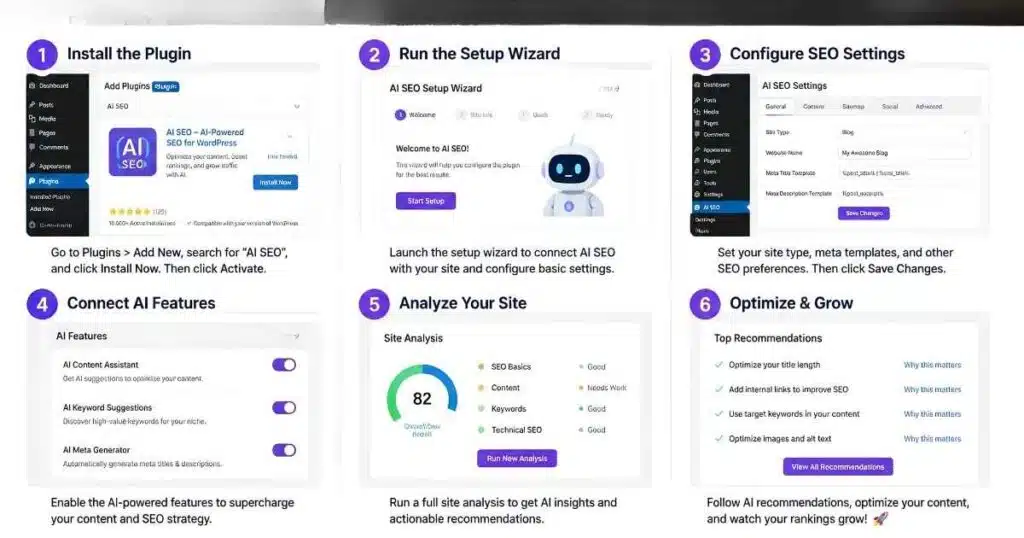
- Log into WordPress and go to Plugins > Add New.
- Search for your chosen plugin, click Install Now, then Activate.
- Run the setup wizard — site type, primary keywords, and Google Search Console connection.
- Open the plugin’s AI settings separately from its general SEO settings.
- Add your API key if required (SEOPress’s credit system skips this step entirely).
- Test the AI feature on one draft post before rolling it out site-wide.
Prompt quality varies more between plugins than most comparison articles admit. A plugin that writes strong meta descriptions won’t necessarily produce equally strong full-article drafts, so test each feature separately rather than assuming uniform quality.
Configuring AI Crawler Access via Robots.txt
Your robots.txt file decides which AI crawlers can even see your content before any optimization matters at all.
Most WordPress SEO plugins include a robots.txt editor, and this is where you explicitly allow or block bots like GPTBot (OpenAI), ClaudeBot (Anthropic), and PerplexityBot, each identifiable by its own user-agent string.
As Robby Stein, Google’s VP of Product for Search, put it, standard best practices around building great content really do apply in the AI age. Blocking every AI crawler out of caution defeats the purpose an AI SEO plugin WordPress setup exists to serve in the first place.
Setting Up llms.txt for AI Search Visibility
An llms.txt file works like a sitemap built specifically for AI models, giving them a structured summary of your site’s most important content rather than a raw list of every URL you’ve ever published.
AIOSEO now includes a built-in LLMs.txt Generator, and several other plugins have added similar features throughout 2026 as this practice moved from experimental to standard.
Generate the file from your plugin’s dashboard, review the auto-populated page list, and prioritize your most authoritative content, guides, comparisons, and cornerstone articles over thin category pages.
This single file often takes under ten minutes to configure yet gives AI crawlers a far clearer picture of your site than robots.txt alone provides.
Using the AI Assistant to Generate Titles, Metas, and Schema
Consider a food blogger who installed Rank Math specifically for its AI content scoring, then used the built-in assistant to generate meta descriptions across sixty older posts that had never been optimized properly.
Instead of writing each one manually, she fed the plugin her focus keyword and target audience for each post, reviewed the five generated options per page, and picked or lightly edited the strongest one.
The process took an afternoon instead of the week manual rewriting would have required across that many pages.
Within two months, several of those refreshed posts started appearing in Google’s People Also Ask boxes, likely helped by the schema markup the plugin applied automatically alongside the new metadata. The AI didn’t replace her judgment. It just removed the blank-page problem across sixty pages at once, freeing her afternoon for the recipe testing she’d rather be doing anyway.
New in 2026: Connecting Claude or ChatGPT to WordPress via MCP
AIOSEO’s newest update introduces Model Context Protocol (MCP) support, letting Claude, ChatGPT, or Cursor connect directly to your WordPress site and make SEO fixes from inside a chat conversation rather than the WordPress dashboard itself.
You describe the problem in plain language, and the connected AI agent executes the fix through the plugin’s MCP integration without you touching wp-admin at all.
This represents a genuine shift from AI-assisted content creation toward AI-executed site maintenance. It’s early, and most teams will still want to review changes before trusting an agent with unsupervised edits.
But it signals where AI SEO plugin functionality is heading well beyond meta description generation, toward something closer to a self-correcting website.
Common Setup Mistakes and Conflicts to Avoid
Publishing AI-generated content without human review remains the most damaging mistake, since Google’s quality guidelines specifically flag content produced with little effort or added value.
A second frequent error is enabling every AI feature immediately rather than starting with one, which makes it hard to tell which setting actually improved anything and which one just added noise.
Forgetting to reconnect Google Search Console after switching plugins breaks your Search Statistics data silently, often for weeks before anyone notices the gap in reporting.
And running two full SEO suites, as covered earlier, remains the single most common technical mistake beginners make in their first week of managing an AI SEO plugin WordPress setup.
Conclusion: Your AI SEO Plugin Setup Checklist
Getting an AI SEO plugin WordPress setup right comes down to five things: pick one plugin rather than stacking two suites, run through the setup wizard fully instead of skipping to the good parts, configure robots.txt and llms.txt for AI crawlers specifically, test the AI assistant on one post before scaling it across your whole site, and review everything the AI generates before it goes live.
None of this takes more than an afternoon, and the technical foundation it builds keeps paying off long after the initial setup.
The sites getting cited in AI Overviews six months from now are largely the ones doing this unglamorous setup work today.
Frequently Asked Questions
Do I need coding skills to set up an AI SEO plugin on WordPress?
No. Installation happens entirely through the WordPress dashboard, and most setup wizards require no code. Advanced customization, like manual schema edits, is optional rather than required.
Can I use two SEO plugins at once?
Not two full suites like Yoast and Rank Math together, since that causes duplicate meta tags and schema conflicts. A dedicated AI-layer plugin can safely run alongside one main SEO plugin.
What’s the difference between robots.txt and llms.txt?
Robots.txt controls which crawlers can access your site at all. llms.txt goes further, giving AI models a structured summary of your most important content to reference.
Is the free version of an AI SEO plugin WordPress enough for most sites?
For many small sites and blogs, yes. Free tiers typically cover meta tags, sitemaps, and basic schema. Paid plans add advanced AI content generation, local SEO, and priority support.
Should I trust AI-generated meta descriptions without editing them?
Review them first. AI-generated drafts are a strong starting point, but a quick human edit for accuracy and brand voice consistently outperforms publishing the raw output untouched.

Abdul Manan is a professional SEO content creator and AI-SEO strategist at seofyai.com. He specializes in helping businesses rank higher on Google through AI-powered, data-driven content optimization. Connect on LinkedIn or visit seofyai.com for expert SEO tips.