

How to connect ChatGPT to Google Sheets is a popular solution for automating repetitive tasks, generating content, and analyzing spreadsheet data with AI. Whether you manage business reports, marketing campaigns, or personal projects, integrating ChatGPT with Google Sheets can save valuable time and improve productivity.
By using Google Sheets automation, OpenAI API, AI spreadsheet tools, workflow automation, and data analysis, you can create formulas, summarize information, generate text, and streamline daily tasks without switching between multiple apps. This guide explains the setup process, key requirements, and practical methods to connect ChatGPT to Google Sheets quickly and efficiently.
Key Takeaways
- The official ChatGPT add-on is free, no-code, and the right starting point for most people.
- GPT for Sheets and Docs works through formulas like
=GPT(), good for bulk operations. - Apps Script + OpenAI API costs money per call and suits custom developer automation.
- Zapier or MCP tools connect Sheets to ChatGPT alongside other apps in one workflow.
- Spreadsheet chats don’t share memory with your main ChatGPT conversations, by design.
- Most “404 errors” trace back to calling a retired model name, not a broken integration.
4 Ways to Connect ChatGPT to Google Sheets (Which One Fits You)
Before picking a method, match it to your situation rather than whichever one a random blog post happened to cover. The official ChatGPT add-on suits anyone who wants a no-code sidebar experience inside Sheets itself.
GPT for Sheets and Docs fits spreadsheet power users who prefer working through formulas. Google Apps Script with the OpenAI API makes sense for developers who need custom automation logic. Zapier or MCP-based tools work best for connecting Sheets to ChatGPT alongside other apps in a broader workflow.
Most people asking how to connect ChatGPT to Google Sheets only need the first option. The other three exist for specific situations where the native add-on falls short, whether that’s bulk formula processing, custom backend logic, or pulling data from several platforms into one conversation.
Method 1: Official ChatGPT Add-On (Easiest, No Code)
OpenAI launched this native integration in beta on March 5, 2026, and it’s now available globally across every ChatGPT tier, including Free and Go accounts with limited usage.
It lives directly inside Google Sheets as a sidebar, letting you build spreadsheets, fix formulas, and analyze data using plain language instead of code, which makes it the most approachable answer to how to connect ChatGPT to Google Sheets for non-technical users.
Step-by-Step Installation
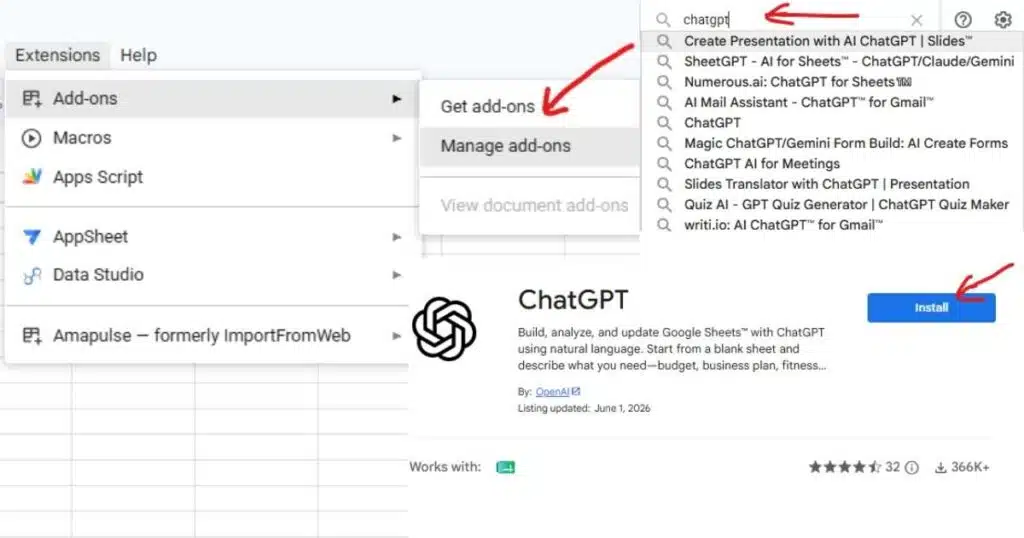
Open any Google Sheet and go to Extensions > Add-ons > Get add-ons. Search for “ChatGPT,” install the official OpenAI add-on, and sign in with your ChatGPT account. The sidebar activates on the right side of your spreadsheet immediately after sign-in, with no separate configuration screen to navigate first.
One caveat worth knowing upfront: spreadsheet chats run separately from your main ChatGPT history, and OpenAI’s own documentation confirms memory isn’t shared between the two. Every spreadsheet session starts fresh, which trips up people expecting continuity with their regular chats.
Method 2: GPT for Sheets and Docs (Free, Formula-Based)
This third-party add-on predates OpenAI’s official tool and still has a loyal following among spreadsheet users comfortable writing formulas rather than chatting through a sidebar.
Instead of a chat window, it adds custom functions like =GPT() directly into cells, letting you call ChatGPT the same way you’d call =SUM() or =VLOOKUP().
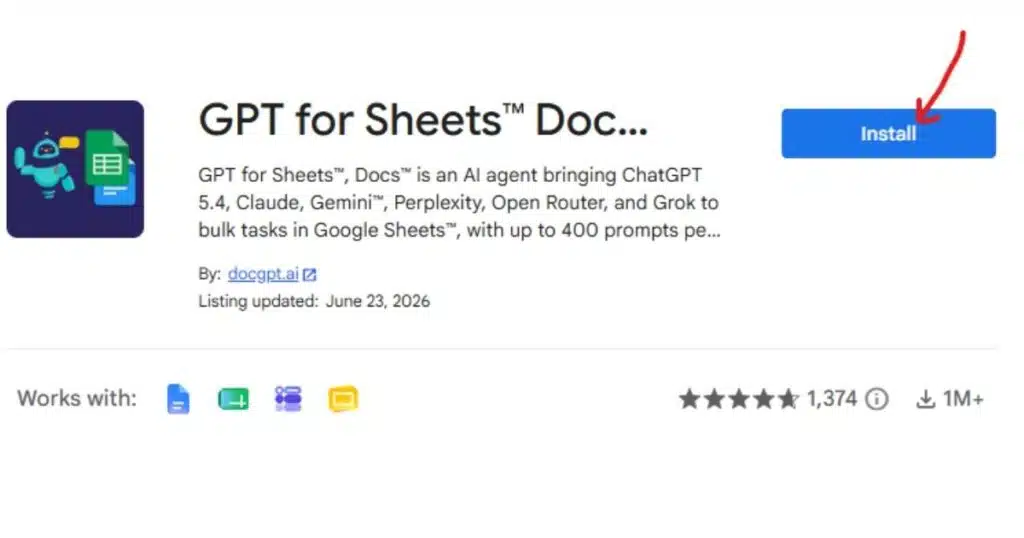
Install it from the Google Workspace Marketplace under Extensions > GPT for Sheets and Docs > Open. You can use it with or without your own API key, and it supports current models rather than being locked to a single outdated version like some older tutorials assume. For bulk operations, like generating hundreds of product descriptions in one pass, this formula-based approach often processes faster than manually prompting through a chat sidebar one row at a time.
Method 3: Google Apps Script with OpenAI API (For Developers)
This is the most flexible method, and the one most tutorials online still describe. Outdated examples circulating online frequently reference deprecated models that OpenAI has since retired.
Building it correctly in 2026 means using a current model in your API calls, not copying code from an article written before the retirement notice went out, since a stale model name is the single most common reason this method breaks for beginners.
The setup involves generating an OpenAI API key, opening Extensions > Apps Script from your spreadsheet, and writing a function that reads a prompt from one cell, sends it to the API, and writes the response back into another. This method costs money per API call, billed separately from any ChatGPT subscription, so it makes the most sense for custom automation that the other three methods can’t handle.
Google Apps Script Code
const OPENAI_API_KEY = "YOUR_OPENAI_API_KEY";

function generateAIResponse() {

  const sheet = SpreadsheetApp.getActiveSpreadsheet().getActiveSheet();

  const prompt = sheet.getRange("A2").getValue();

  const response = UrlFetchApp.fetch(
    "https://api.openai.com/v1/responses",
    {
      method: "post",
      headers: {
        "Authorization": "Bearer " + OPENAI_API_KEY,
        "Content-Type": "application/json"
      },
      payload: JSON.stringify({
        model: "gpt-5-mini",
        input: prompt
      })
    }
  );

  const result = JSON.parse(response.getContentText());

  sheet.getRange("B2").setValue(result.output_text);
}
How to Use This Script
- Open your Google Sheet and go to Extensions → Apps Script.
- Paste the code above and replace
YOUR_OPENAI_API_KEYwith your OpenAI API key. - Enter your prompt in cell A2 and run the
generateAIResponsefunction. - The AI-generated response will automatically appear in cell B2.
This script connects Google Sheets with the OpenAI API and allows you to automate AI-powered tasks directly inside your spreadsheet.
Method 4: No-Code Automation via Zapier or MCP
Neither official OpenAI documentation nor most beginner tutorials mention this route, yet it’s often the better choice for anyone already juggling multiple tools across a marketing or operations workflow.
Model Context Protocol (MCP) connections let ChatGPT, Claude, and other AI tools access Google Sheets through a single standardized link rather than a custom integration built separately for each tool.
Platforms like Zapier or Porter Metrics let you paste one connection URL into ChatGPT and skip writing scripts entirely. This approach shines when you need Sheets data flowing into ChatGPT alongside other sources, like ad platforms or CRMs, inside a single conversation rather than juggling separate exports.
Cost Comparison: Free vs API vs Third-Party Tools
Here’s what each method actually costs, since pricing gets buried or skipped entirely across most coverage of this topic.
| Method | Cost |
|---|---|
| Official add-on | Free tier; Plus/Pro usage-limited |
| GPT for Sheets and Docs | Free; optional own API key |
| Apps Script + API | Pay per call |
| Zapier / MCP | Free tier; scales with usage |
The official add-on covers the vast majority of everyday needs without any extra cost beyond your existing ChatGPT plan.
This makes it the sensible default before reaching for anything requiring a separate API bill.
Real Example: Turning Sales Data into an AI Summary
Picture a small ecommerce owner tracking monthly sales across three product categories in a single spreadsheet, the kind of file that grows messier every quarter without anyone dedicating time to clean it up.
Instead of manually building a summary each month, she opens the official ChatGPT add-on, selects the relevant tabs, and types a specific request: summarize revenue trends across all three categories and flag anything unusual compared to last month.
Within seconds, ChatGPT returns a written summary alongside the exact cells it referenced, noting that one category dropped 18% while the other two held steady. That kind of targeted analysis, tied directly to real cells rather than a generic response, is the practical difference between just connecting the tools and actually using the connection well.
Common Errors and How to Fix Them
A 404 error when using the API method almost always means you’re calling a retired model name, since OpenAI periodically deprecates older models without much fanfare. Check OpenAI’s current model list and update your script rather than assuming the integration itself is broken.
A blank or malformed response from Apps Script usually points to an unexpected API response structure, often from a missing or expired API key. Logging the full raw response before parsing it catches this quickly.
For the official add-on specifically, a common frustration is expecting spreadsheet chat history to carry over from your main ChatGPT conversations. It doesn’t, by design, so starting each spreadsheet session with a bit of brief context solves that friction fast.
Conclusion: Which Method Should You Actually Use?
For nearly everyone learning how to connect ChatGPT to Google Sheets for the first time, the official add-on is the right starting point. It’s free to install, requires no code, and covers the vast majority of everyday spreadsheet tasks without a separate bill showing up later.
Reach for GPT for Sheets and Docs if you prefer formulas over chat, and the Apps Script method if you’re building something custom that needs full control over the logic.
Zapier or MCP tools make sense if Sheets is just one piece of a larger automated workflow spanning several apps. Pick based on what you’re actually trying to build, not whichever method the first article you found happened to recommend, and switching methods later costs nothing but a few minutes of setup.
Frequently Asked Questions
How to connect Google Sheets with AI?
Connect Google Sheets with AI by using the OpenAI API and a Google Sheets add-on or Apps Script to automate content generation, data analysis, and spreadsheet tasks.
How do I install ChatGPT for Google Sheets?
Install a ChatGPT-compatible Google Sheets add-on from the Google Workspace Marketplace, then connect your OpenAI API key to start using AI features.
Can ChatGPT be used with spreadsheets?
es, ChatGPT can work with spreadsheets to generate formulas, summarize data, classify information, translate text, and automate repetitive tasks.
How do I enable chat in Google Sheets?
To enable chat-like AI features in Google Sheets, install a ChatGPT add-on or create a Google Apps Script that connects to the OpenAI API.
Can I link ChatGPT to Google Sheets?
Yes, you can link ChatGPT to Google Sheets using the OpenAI API, third-party integrations, or Google Apps Script for seamless AI-powered automation.

Abdul Manan is a professional SEO content creator and AI-SEO strategist at seofyai.com. He specializes in helping businesses rank higher on Google through AI-powered, data-driven content optimization. Connect on LinkedIn or visit seofyai.com for expert SEO tips.